BRO FAKE SS BOT Documentation
A comprehensive guide to using the Telegram bot for creating fake payment screenshots for educational and demonstration purposes only.
Open @Quick_Fake_BotGetting Started
This bot allows you to create fake payment screenshots for services like bKash, Nagad, Binance, and ByBit for demonstration purposes only.
Start the Bot
Open the bot by searching for @Quick_Fake_Bot on Telegram. Click the "Start" button to begin.
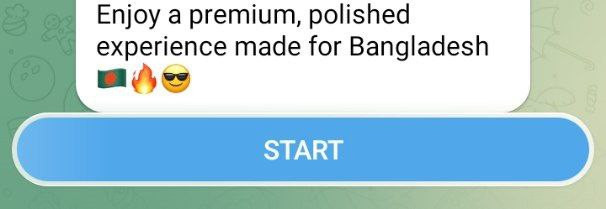
Initial bot screen with the Start button
Input Box & Menu
After starting, you'll see the input box at the bottom and inline buttons at the top of the message.
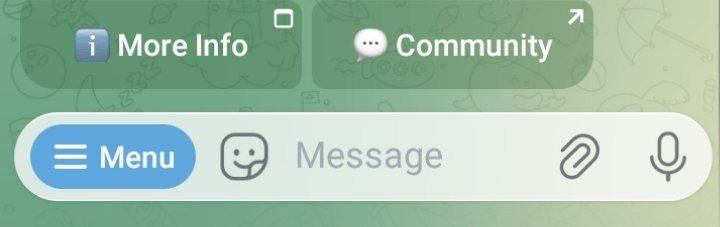
Input box and menu buttons after starting the bot
Open Menu
Click the menu button to see all available options for creating fake screenshots.
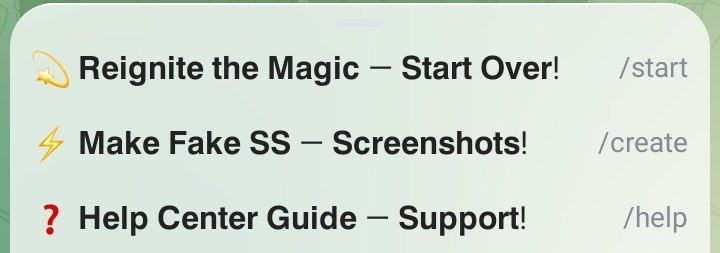
Menu options after opening
Create/Generate Button
Click the "Create" or "Generate" button to start the screenshot creation process.
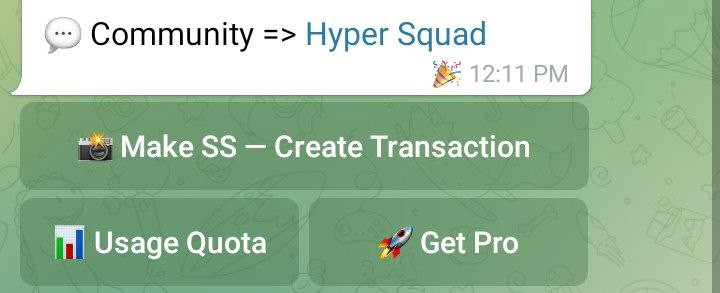
Create/Generate button in the menu
Select Service
Choose the payment service you want to create a fake screenshot for (bKash, Nagad, Binance, or ByBit).
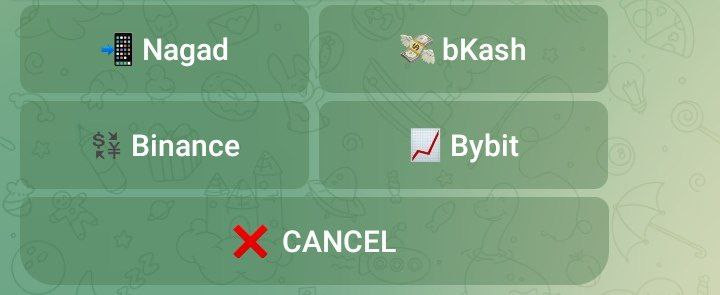
Service selection with Cancel button
Select Version
After selecting a service, choose which version of that service's UI you want to use.
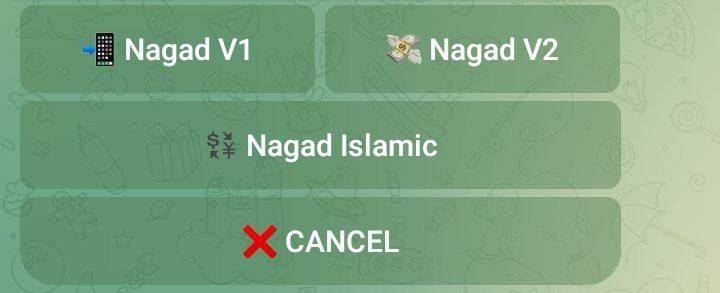
Selecting version of the chosen service
Enter Phone Number
Enter the 11-digit Bangladeshi phone number (like 01711111111) you want to appear in the screenshot.
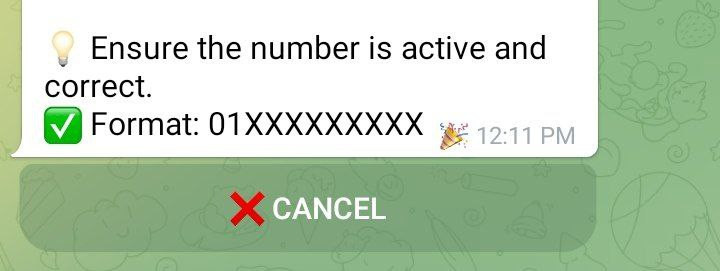
Message asking for 11-digit phone number with Cancel button
Phone Number Format
Enter the number in the exact 11-digit format as shown in the example.
Example of how to input the phone number
Enter Amount
Enter the amount (between 10 and 100,000) you want to show in the payment screenshot.
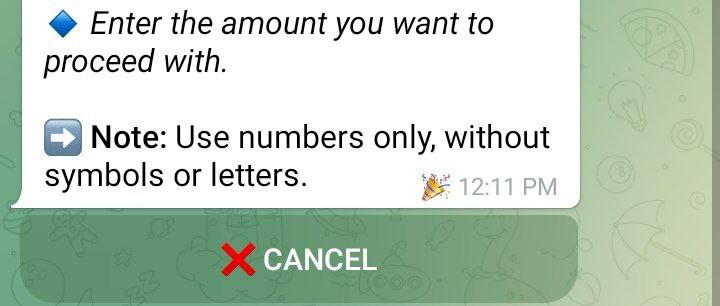
Message asking for amount with Cancel button
Amount Format
Enter the amount in numeric format only (e.g., 1500 for one thousand five hundred).
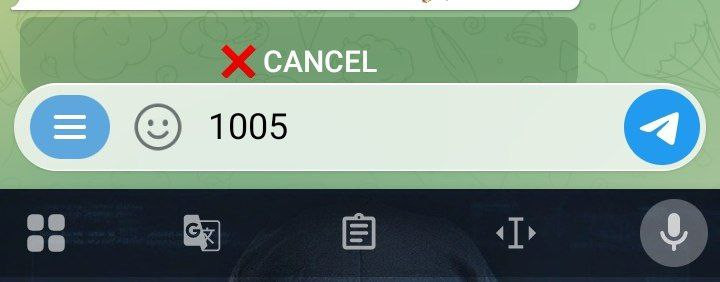
Example of amount input (1500)
Transaction ID
Enter a 10-digit transaction ID or click "Auto Generate" to let the bot create one automatically.
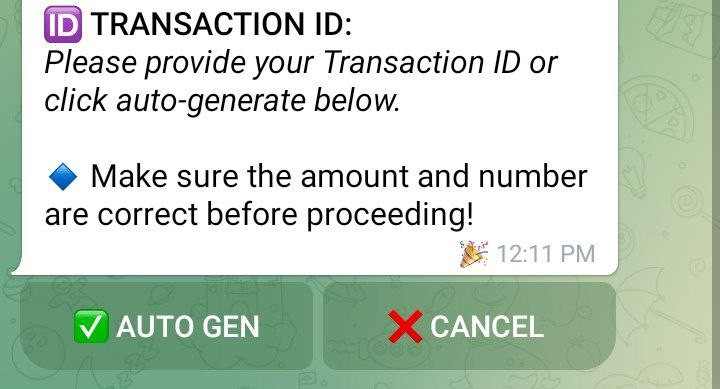
Transaction ID input with Auto Generate and Cancel buttons
Confirmation
Review all your inputs and click "Confirm" to generate the screenshot or "Cancel" to abort.
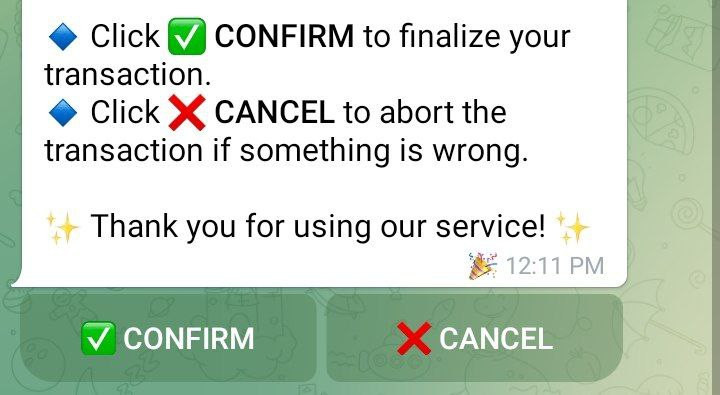
Confirmation message with Confirm and Cancel buttons
Processing
After confirming, the bot will process your request and generate the screenshot.
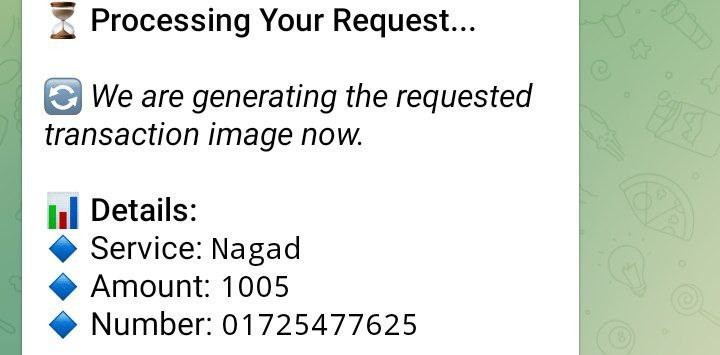
Processing message while generating the screenshot
Generation Complete
Once processing is complete, you'll see a success message with the first and second lines of the generated image.
Success message after generation
Download Image
The generated image will appear with a small download button to save it to your device.
Generated image with download button
Full Display
Click the image to open it in full display mode. You'll see the three-dot menu at the top.
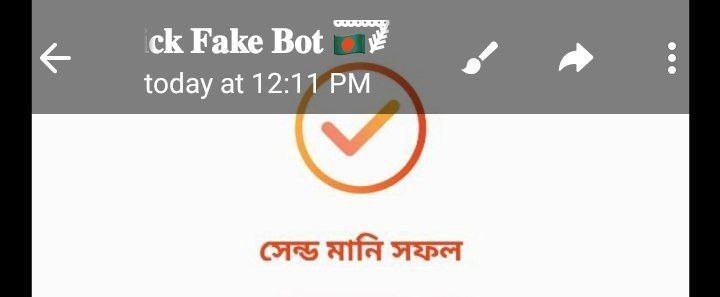
Image in full display mode with three-dot menu
Save to Gallery
Click the three-dot menu and select "Save to Gallery" to save the image directly to your device's gallery.
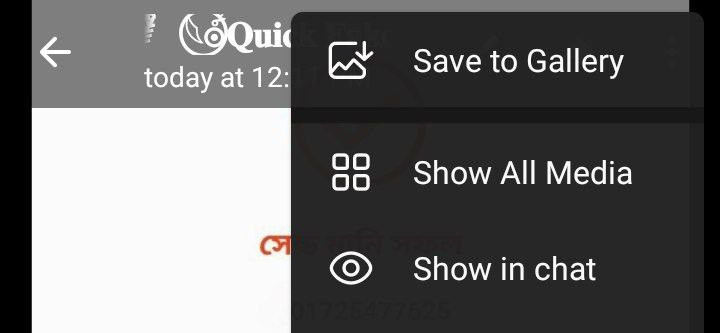
Three-dot menu with "Save to Gallery" option
Save Confirmation
After saving to gallery, you'll see a confirmation message at the bottom of the screen.
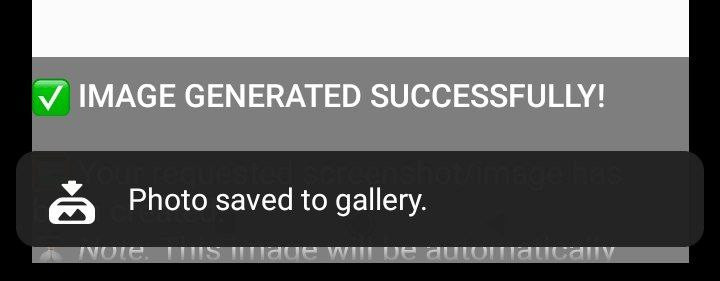
Confirmation message after saving to gallery
Inline Features
The bot also supports inline mode, allowing you to generate screenshots or share your history from any chat.
Inline History
Type the bot's username (@Quick_Fake_Bot) in any chat to see your history of generated images with inline callback query.
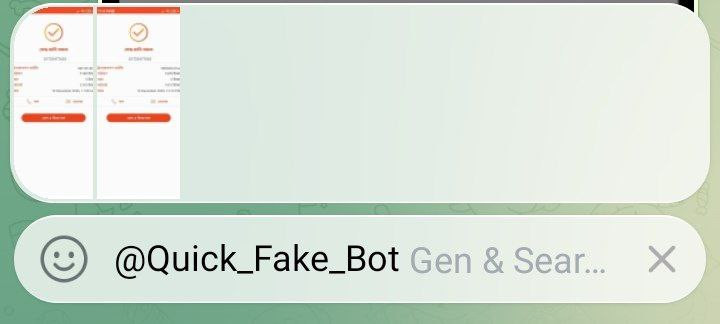
Inline history showing previously generated images
Language Codes
After selecting an image from history, you can send it with a caption in different languages by using language codes.
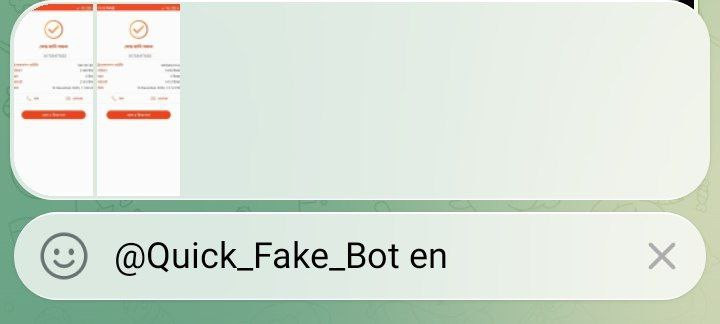
Supported language codes for captions
Simply type the language code after selecting an image to send it with a caption in that language.
English Caption Example
When you use "en" as the language code, the caption will be sent in English.
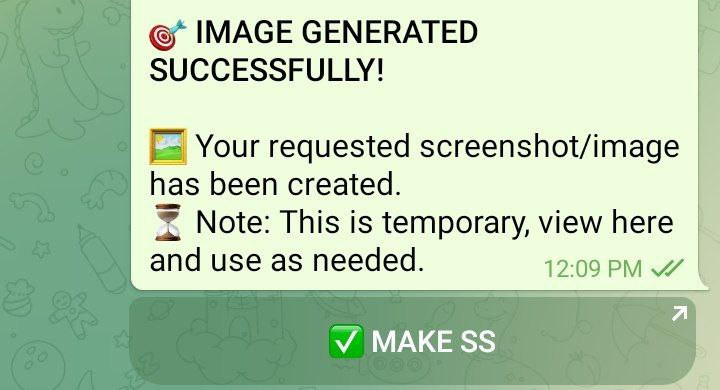
Image sent with English caption using "en" code
Inline Generation
You can also generate new screenshots directly in inline mode by typing: @Quick_Fake_Bot 01711111111 1000
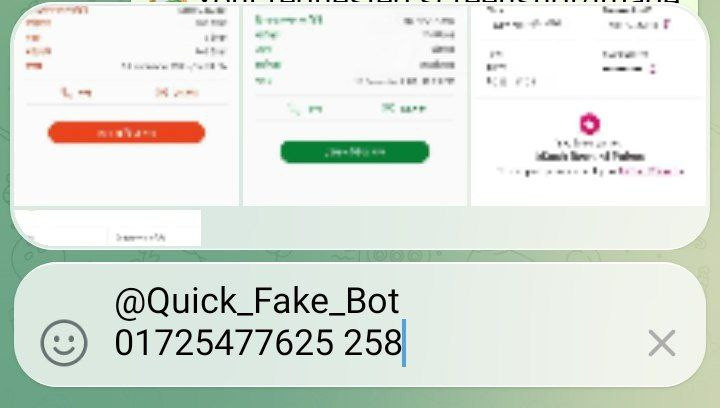
Inline generation format example
Custom Caption
Instead of a transaction ID, you can write any custom caption as the last parameter.
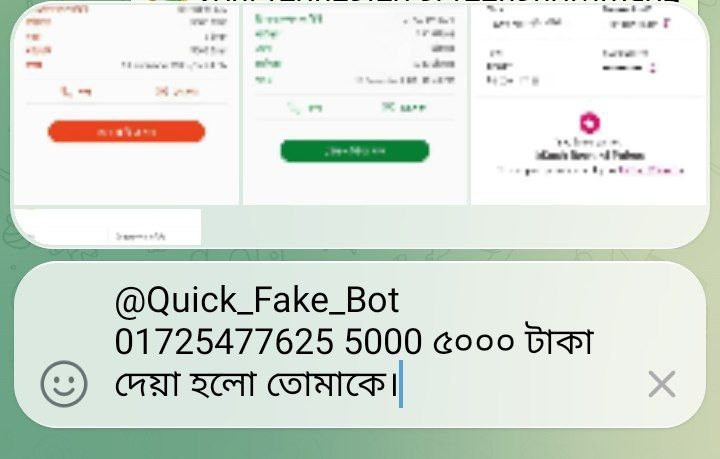
Using custom caption instead of transaction ID
Generated Result
After sending the inline command, the generated image will appear in the chat with your specified caption.
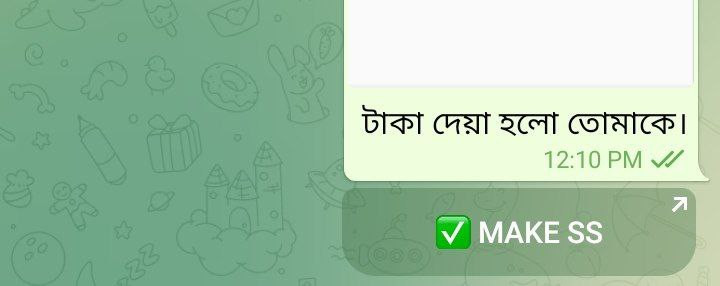
Final result of inline generation
Bot Features
Mobile-Friendly
Optimized for mobile devices with intuitive interface and easy navigation.
Multi-Language Support
Support for 8+ languages for captions: en, bn, hi, ur, ar, tr, ru, zh.
Fast Generation
Quick generation of fake payment screenshots in seconds.
History Access
Access your previously generated images through inline mode from any chat.
Easy Sharing
Share generated images directly to any chat with customizable captions.
Multiple Services
Support for bKash, Nagad (Bangladesh), Binance, and ByBit (International).
Frequently Asked Questions
What is this bot for?
This bot is for educational and demonstration purposes only. It creates fake payment screenshots to help users learn about digital payment interfaces or for demonstration in presentations.
Is this bot legal to use?
The bot is for educational purposes only. Using fake screenshots for fraudulent activities is illegal. Always use this tool responsibly and ethically.
Which countries are supported?
bKash and Nagad are for Bangladesh. Binance and ByBit can be used internationally for demonstration purposes.
What are the amount limits?
You can enter amounts from 10 to 100,000 in numeric format only.
How do I save images to my gallery?
Click on the generated image to open it in full display, then click the three-dot menu and select "Save to Gallery".
Can I use this bot in groups?
Yes, you can use the inline mode in any chat, including groups and channels, by typing @Quick_Fake_Bot followed by the required parameters.